
Get an API in Roccai for PowerBI
In short
Follow these steps to integrate Roccai data via an API into your PowerBI dashboards seamlessly.
Updated
Step 1 – Obtain API Token
1.1. Obtain a valid token to access the Roccai API.
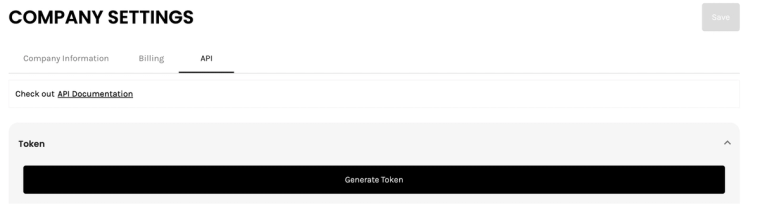
You can get your token under Company Settings and API:
- Log in to your Roccai profile.
- Go to company settings https://app.roccai.com/company-settings
- Select API, press Generate Token, and copy the token.
Step 2 – Retrieve Data
2.1 Locate the endpoint that provides the desired information
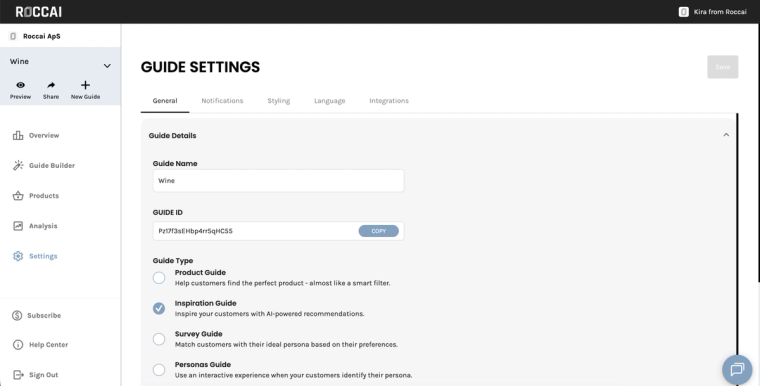
The Guide ID is found under Settings – Guide ID:
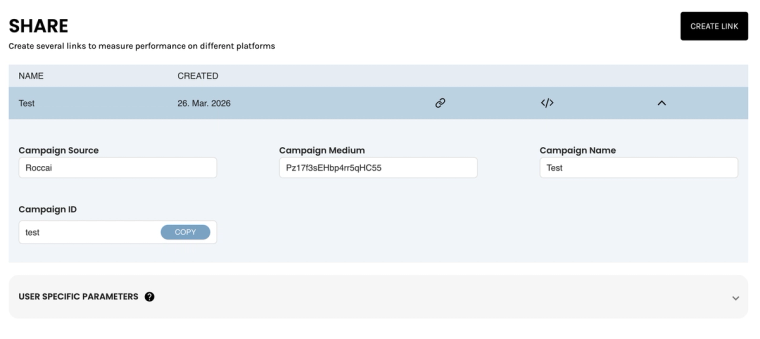
The Campaign ID is found by clicking the Share Icon in the menu. Then click the row on the campaign you want to get the ID from and click copy to get the campaign ID.
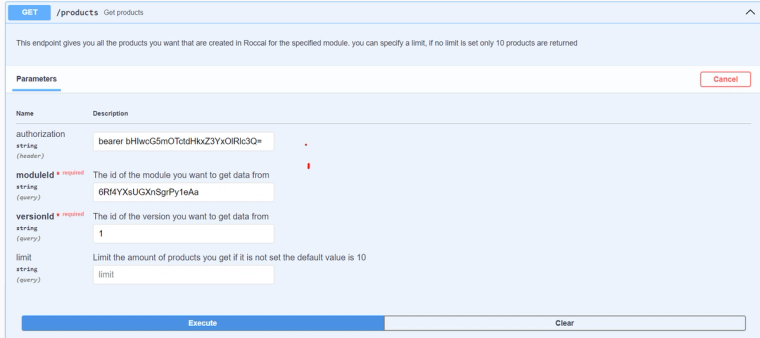
2.2. Fill in the details in the API documentation:
- Authorization: doesn’t need to be filled out
- ModuleId: Specify the required Module Id.
- CampaignId: Specify the Campaign Id (CampaignId should only be used for some, such as decisions. It should not be used for products.)
2.3. Press the ‘Execute’ button to get a response.
Step 3 – Copy the generated Request URL

Step 4 – Set Up Power BI
4.1. Open Microsoft Power BI.
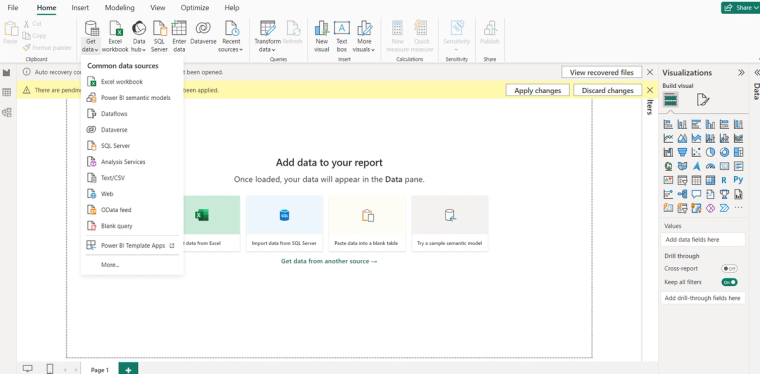
4.2. Go to Home > Get Data > Web.
Step 5 – Configure Power BI connection
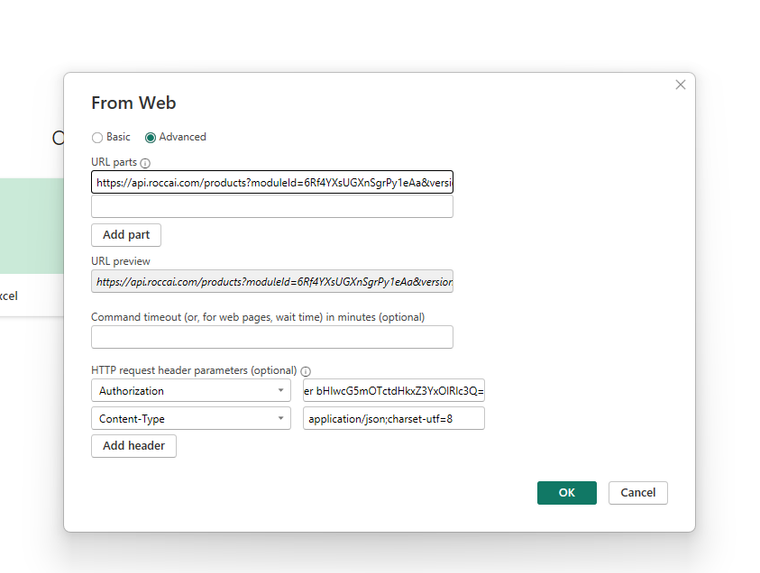
5.1. Choose the ‘Advanced’ option and paste the Request URL.
Make sure the URL is api.roccai.com.
5.2 In the HTTP request parameters section:
- Authorization Type: Set the authorization type as ‘bearer’ followed by your token.
- Content Type: Specify the ‘content type’ as ‘application/json;charset-utf=8’
Step 6 – Display Result
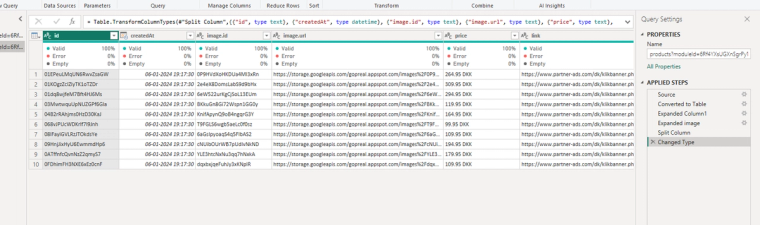
After configuring the connection, Power BI will evaluate the query and the output will be displayed in Power BI.
If you need our help, please contact us via the chat in the bottom right corner.