
How to set up the HubSpot integration
In short
Connect HubSpot to send enriched leads from selected Roccai guide campaigns into your CRM. Create a HubSpot service key with contact read/write access, connect it in Roccai, and map guide answers to HubSpot property internal names. Roccai creates new contacts or updates existing ones by email.
Updated
Connect HubSpot to send every enriched lead from your guides straight into your CRM. Roccai creates a new contact, or updates the existing one if the email is already in HubSpot, and writes the guide answers to the properties you choose. Setup takes about 10 minutes and needs no developer.
Before you start
- A HubSpot user with access to Development settings, so they can create service keys (usually a Super Admin)
- Access to the guide in Roccai you want to connect
Set up the integration
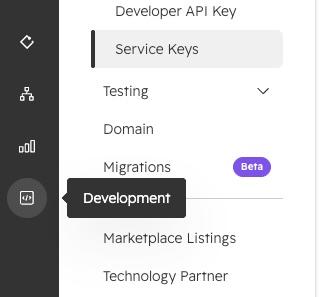
Create a service key in HubSpot
- Create a service key in HubSpot. Click Development in the left menu, click keys, open Service Keys and create a new key. Name it "Roccai".
- Give it access to contacts. Add write access for contacts, then save the key.
- Copy the key.
- Paste the key in Roccai. In the Roccai dashboard, open Integrations, choose HubSpot and paste the key.
5. Choose campaigns. Select the campaigns that should send leads to HubSpot.
6. Map your fields. Pair each Roccai field with a HubSpot property in the mapping table, then save.
Find HubSpot property names
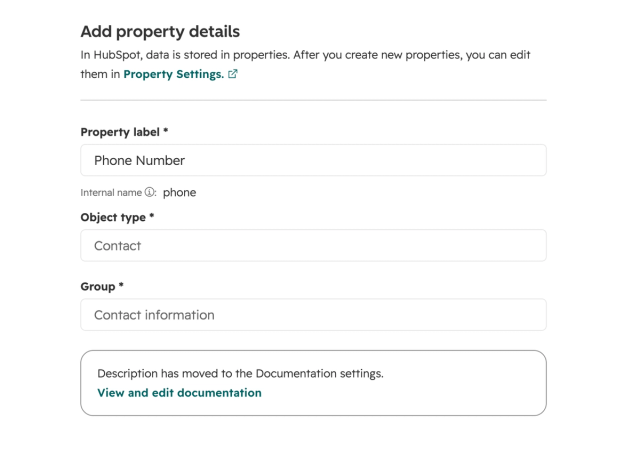
The mapping table uses HubSpot's internal name, not the label you see on the contact.
- In HubSpot, go to Settings → Data Management → Properties.
- Choose Contact properties and click the property you want.
- Copy the Internal name (for example firstname) into Roccai.
You can map to both standard and custom properties. See HubSpot's default contact properties.
Check that it works
Complete one of your connected guides with a test email. The contact should appear in HubSpot within a minute, with your mapped properties filled in.
FAQ
Will it create duplicates?
No. If the email already exists in HubSpot, Roccai updates that contact.
Can I send only some campaigns?
Yes. Only the campaigns you select send leads to HubSpot.
Can I send more than the email?
Yes. Besides your mapped answers, you can include the full decision path (options chosen and rejected) and an AI summary of the session.
My contact is missing a value.
Check that the internal name in the mapping table matches HubSpot exactly, and that the service key has write access to contacts.
Create a service key in HubSpot
Click Development in the left menu, click keys, open Service Keys and create a new key named Roccai.
Give the key contact access
Add read and write access for contacts, then save the key.
Copy the service key
Copy the newly created key.
Paste the key in Roccai
In the Roccai dashboard, open Integrations, choose HubSpot and paste the key.
Choose campaigns
Select the campaigns that should send leads to HubSpot.
Map your fields
Pair each Roccai field with a HubSpot property's internal name in the mapping table, then save.