Export your Data with Zapier
This guide will walk you through the steps to export your data from Roccai to your chosen dashboard platform. You can either use Roccai’s API directly or set up a scenario with Zapier or Make, depending on your platform.
In order to extract your Roccai data you need to request a link from the support team, which will give you access to Roccai’s tool in Zapier. Please contact us by pressing the chat symbol in the bottom right corner on this page and request a link.
Step 1: Create a Zapier Profile
- Create a profile with Zapier or log in here.
- In order to extract your Roccai data you need to use the above mentioned link. The link will be sent to your email and contain a Zapier invitation.
- When you have accepted the invitation, click the Create button and select Zaps.

Step 2: Schedule by Zapier
Since we do not automatically send data, Zapier needs to request it at scheduled intervals. To achieve this, you can use the Schedule by Zapier app, which allows you to define when Zapier should retrieve data from our API.
For example, you can set up Zapier to request data every hour instead of waiting for an automatic push. This ensures that the latest data is always available when needed.
Select the trigger and search for the Schedule app. Set the interval to your preferences.

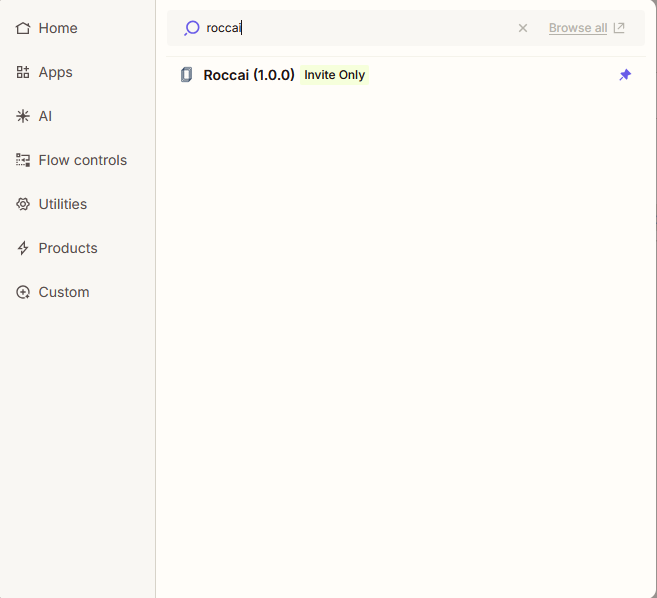
Step 3: Search for Roccai
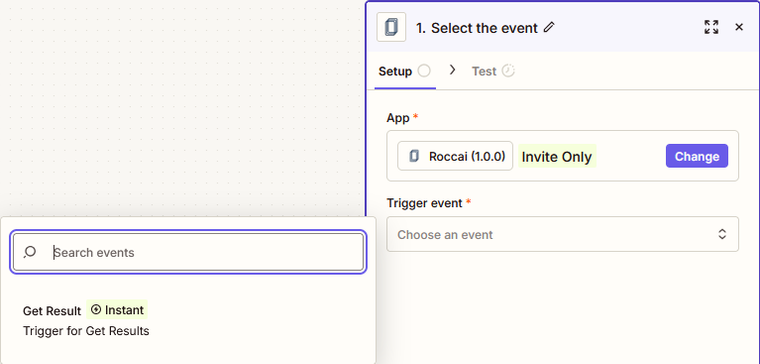
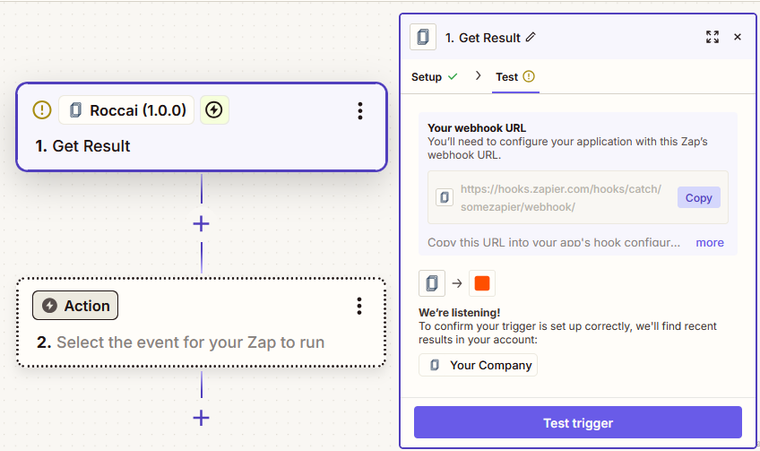
Next, select the Roccai tool for your first action after the scheduled trigger. This is where we will connect you to your data.

Setup
- Choose Get Journeys in the action event dropdown menu.
- Next, connect your Roccai account. For this you need an access token from your Roccai profile.

Find Your Token
- Log in to your Roccai profile.
- Go to company settings via https://app.roccai.com/company-settings or by clicking on your company name

- Select API, press Generate Token, and copy the token.

Find Your Company Name
In this field, you can fill out your company name or something that you use to identify which account you are signed in to.
Configure
Configure your data retrieval by inputting your desired Module ID and Campaign ID.

Locate the Module ID and Campaign ID:
- The Module ID can be found under Settings with the name Guide ID in the Roccai app.

- The Campaign ID can be found by clicking the Share icon over the menu on the left side (above Settings), then selecting the desired campaign by pressing the arrow to the right, and clicking copy.

Important: Handling Multiple Zapier Integrations
If you set Get Newest Data to True and have multiple Zapier integrations connected to the same module, you will need to create a separate Token for each Zap. This ensures that each Zap retrieves the correct and most recent data independently.

Test
Finally, test your action by clicking Test step. Your output should contain Result at the top, which contains all your requested data.

Step 4: Filter by Zapier
To handle if the Result returns an empty list, add the app Filter By Zapier after the Roccai action. This will stop the zap from entering the loop with an empty list.
App & Event

Configure & test
The zap should only continue if the Result Exists.

Step 4: Loop through results
The list of user journeys is available within Result, therefore we need to loop through them in order to create a separate line for each journey.
App & Event
Add a new action with the connection Looping by Zapier and choose Create Loop From Line Items.

Action
Under Configure input the values you want to loop through; here you define a name (left value) for every attribute of your data you want to retrieve, and connect it to the corresponding previously fetched data.
The following is an example, where, for instance, emails are retrieved through the email input fields Result Fields <ID> Value, and the answers to the question “Is fishing something you enjoy?” is retrieved through the Selected Actions for that given card with its unique ID.

Note: If Zapier is not loading correctly with all possible data attributes, scroll to the bottom and press More on the bottom one to expand it; then further attributes should appear.

Test
Your data will come out like this

Step 5: Choose Your Connection
Select the desired connection for your data export.
For example, to send data to Google Sheets:
Create a new Google Sheet with headers that fit your data. In accordance with the configuration above you could have the following:

App & Event
Next, after the Looping action add an action from Google Sheets. At this point, your zap will look as follows:

Now you can choose an event, for instance Create Spreadsheet Row.

Account
Connect to your account and then configure with your desired spreadsheet.

Action
Next, match the headers from the spreadsheet (ID, CreatedAt etc.) with the data you extracted from Looping.

Test
Test the step to ensure the data is correctly imported into the sheet. Delete the row again if you want to have a clean sheet before full retrieval.
You can now run your entire zap to retrieve all data from your module.

Step 6: Need More Help?
If you need further assistance exporting your data from Roccai, please contact us via chat support.