
Create and Add a Product Feed
This guide is designed to assist you in creating a product feed sourced from your website and adding it to the Roccai platform.
Updated
This guide is designed to help you create a product feed sourced from your website and add it to the Roccai platform.
Step 1
The first thing you need to do is create a product feed in your website's backend. A product feed is a structured file containing detailed information about a company's products; you might know this from Google Shopping.
The format must be either .xml or JSON. And it should be a live link.
This is an example of what one item in a Google Shopping feed could look like.
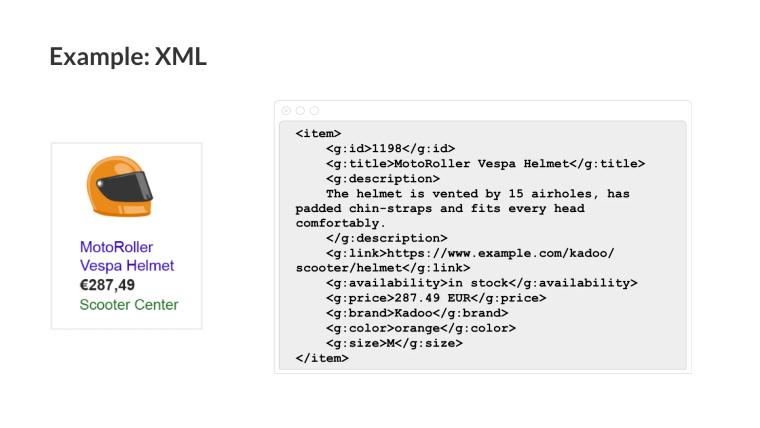
The product feed must contain the following elements:
- id (required)
- title (required)
- subtitle
- description (required)
- imageUrl (required)
- link (required)
- tags
- categories
- price
- sales price
- status (in stock, etc.)
Shopify
If you use Shopify, you can use this plugin (up to 100 products for free):
https://apps.shopify.com/product-feeds-generator-by-amasty?locale=da
Or check out this guide on how to get a product feed from Shopify using the FeedFusion plugin.
WooCommerce
Check out this guide on how to generate a product feed in WooCommerce.
Step 2
Sign in to app.roccai.com, and the onboarding will begin. Follow this interactive Demo to find out how to add your product feed and complete your onboarding.
If you need our help, please contact us via the chat in the bottom right corner.